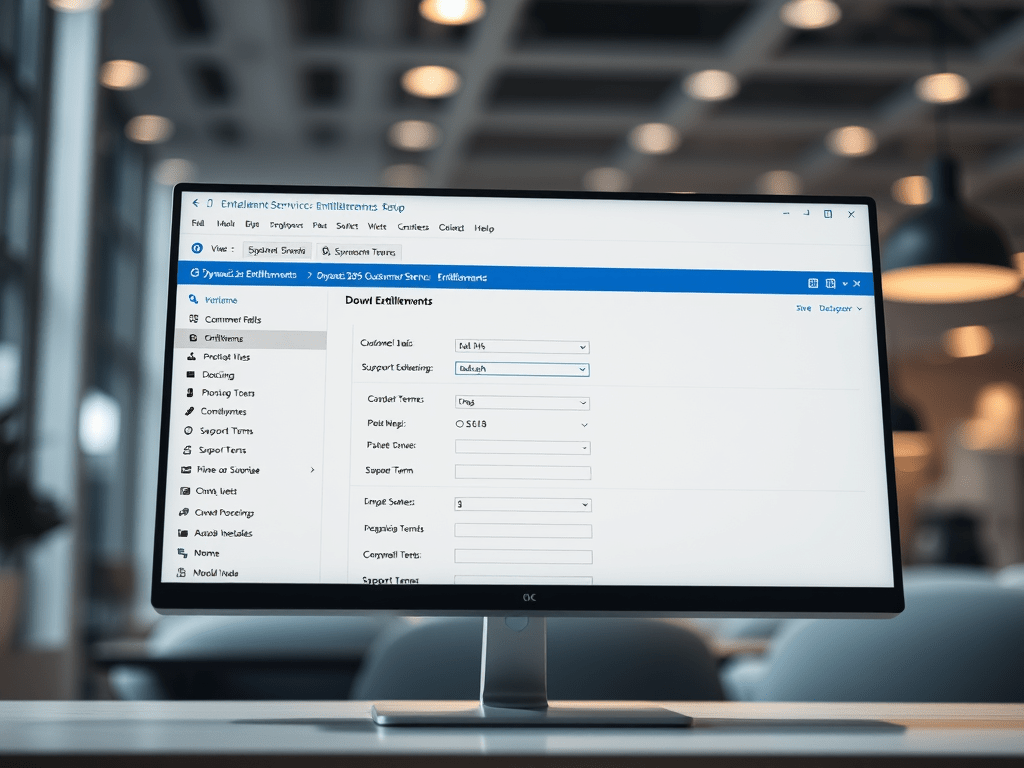
Here’s a step-by-step guide to configure Entitlements in Dynamics 365 Customer Service. Entitlements allow you to define support terms (like number of cases, hours, or service level agreements) that a customer is entitled to.
📘 What is an Entitlement?
An Entitlement in Dynamics 365 defines the level and type of support a customer is eligible for, such as:
- Number of cases allowed
- Number of support hours
- Linked SLA (Service Level Agreement)
- Applicable to a customer or product
- Can be time-bound (start and end date)
✅ Prerequisites
- You must have the Customer Service app installed
- You need System Administrator, Customer Service Manager, or equivalent privileges
- SLAs configured (optional but recommended)
🧭 Step-by-Step: Configure Entitlement in Dynamics 365
🔹 Step 1: Enable Entitlements for Case (if not already)
- Go to Advanced Settings > Settings > Service Management > Service Configuration Settings.
- Ensure the option “Use entitlements” is set to Yes.
- Save and close.
🔹 Step 2: Create a New Entitlement
- Open the Customer Service Hub.
- Navigate to Service Management > Entitlements.
- Click + New.
Fill in basic info:
- Name: e.g., Gold Support for Contoso
- Customer: Select a Contact or Account
- Start Date / End Date: Define entitlement validity
- Restrict based on entitlement terms: Set to Yes to enforce limits
- Allocation Type:
- Number of Cases – Fixed number of incidents
- Number of Hours – Based on billable support hours
- Total Terms: e.g., 10 cases or 20 hours
- SLA: Attach an SLA (optional)
- Click Save.
🔹 Step 3: Add Entitlement Channels (e.g., Email, Phone, Web)
- In the entitlement form, scroll to Entitlement Channels (subgrid).
- Click + New Entitlement Channel.
- Set:
- Channel: Email / Phone / Web / etc.
- Total Terms: e.g., 5 email cases, 5 phone cases
- Save & close.
- Repeat for other channels.
🔹 Step 4: Associate Products (Optional)
If the entitlement applies to specific products:
- Go to Products subgrid > Click + Add Existing Product
- Select the applicable product(s)
Now, only cases related to those products will use the entitlement.
🔹 Step 5: Activate the Entitlement
Once setup is complete:
- Click Activate on the command bar.
- Status Reason will become Active, and the entitlement becomes available for use.
🔹 Step 6: Link Entitlement to Case (Manually or Automatically)
Manually:
- Open a Case record
- In the Entitlement lookup, choose the appropriate entitlement
Automatically:
- Use Entitlement Automation Rules or Automatic Record Creation (ARC) rules
- Optionally use Power Automate to auto-link entitlements based on account, product, or channel
🧪 Step 7: Test the Entitlement
- Create a new Case for the customer
- Link the entitlement (should auto-link if configured)
- Case should reduce the terms remaining (case count or hours)
- When the case is resolved, terms used should update
- Once terms are exhausted, user will get a warning if they try to use the entitlement
🧠 Tips & Best Practices
| Tip | Description |
| Create Entitlement Templates | Use as blueprint for similar customers |
| Use with SLA | Combine SLAs with Entitlements for complete support policies |
| Use in Email-to-Case | Auto-link entitlement to incoming emails |
| Reporting | Monitor entitlement consumption using Power BI or custom views |
🧰 Optional Enhancements
- Use Power Automate to notify agents when terms are low
- Integrate Entitlements with Customer Voice to gather satisfaction feedback post-case
- Automate Entitlement expiration reminders to account managers

Leave a comment