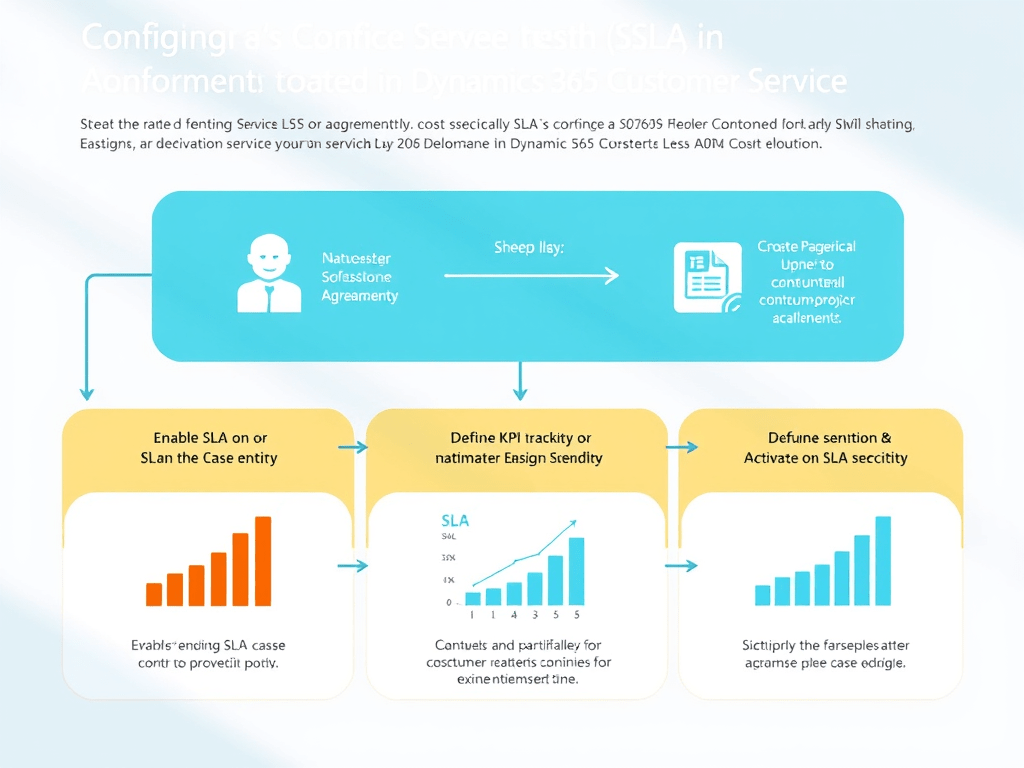
Step-by-step guide to configure Service Level Agreements (SLAs) in Dynamics 365 Customer Service. SLAs help track service performance by ensuring timely responses and resolutions for cases, entitlements, or other service entities.
📘 What is an SLA in Dynamics 365?
An SLA (Service Level Agreement) defines:
- Response time targets for customer issues
- Actions to take when service thresholds are breached (like sending alerts)
- KPI tracking such as First Response and Resolution times
🧰 Prerequisites
- Dynamics 365 Customer Service license
- Access to Customer Service Admin Center
- Case entity should be enabled for SLA
- (Optional) Entitlements configured
✅ Step-by-Step: SLA Configuration
🔹 Step 1: Enable SLA on Case Entity
- Go to Advanced Settings > Customizations > Customize the System.
- Expand Entities > Case.
- Under Settings, ensure Enable for SLA is checked.
- Click Save and Publish All Customizations.
🔹 Step 2: Create a SLA KPI (if custom KPIs needed)
- Navigate to Customer Service Admin Center > SLA KPIs
- Click + New:
- Name: First Response By or Resolve By
- Entity: Case
- Allow Pause: Yes (if using pause conditions)
- Save and Publish
Dynamics 365 includes built-in KPIs like:
- First Response By
- Resolve By
🔹 Step 3: Define the SLA
- Go to Customer Service Admin Center > Service Level Agreements (SLAs)
- Click + New SLA
- Name: e.g., Gold Support SLA
- Entity: Case
- Applicable From: e.g., Created On
- Select Default SLA (if this is the default one)
- Save
🔹 Step 4: Add SLA Items
- In the same SLA, go to the SLA Items section.
- Click + New SLA Item
- Name: First Response
- KPI: First Response By
- Success Criteria: Case status is In Progress
- Failure After: 2 hours
- Warn After: 1 hour
- Scroll to Actions section:
- On Success/Failure/Warning: Trigger a workflow or send notification email
🔁 Repeat to add another SLA Item:
- Name: Resolve Case
- KPI: Resolve By
- Failure After: 24 hours
- Success Criteria: Case status = Resolved
🔹 Step 5: Set Pause Conditions (Optional)
Pause SLA when case is on hold or waiting for customer:
- In SLA record, scroll to Pause Conditions.
- Add pause condition:
- Case Status = On Hold OR Waiting for Details
🔹 Step 6: Activate SLA
- Once all items are added, click Activate.
- Publish changes.
🔹 Step 7: Apply SLA to Cases (Manually or via Entitlement)
You can apply SLAs:
- Automatically via Entitlements:
- Create Entitlement for a customer or product
- Assign SLA to the entitlement
- Link Entitlement to Case
- SLA applies automatically
- Manually by setting the SLA field on a case record
📊 Step 8: Monitor SLA Status on Case
Case form shows:
- SLA timer bar (for first response and resolution)
- SLA KPI instance records in the timeline or related records
- Status like “In Progress”, “Succeeded”, or “Violated”
🧠 Tips
| Feature | Description |
| Multiple SLAs | Apply different SLAs based on customer, priority, etc. |
| Workflows/Power Automate | Trigger alerts on SLA warnings or failures |
| Entitlements | Enforce limits based on contract hours or number of cases |
| KPI Instances | Each SLA item creates a record to track SLA performance |
🔍 Optional: SLA with Power Automate (Advanced)
You can also use Power Automate to:
- Notify agents when SLA is nearing breach
- Escalate cases
- Update dashboards or reports
🧪 Test the SLA Setup
- Create a test case and apply the SLA
- Observe the SLA timer
- Change case status or wait for violation
- Verify the KPI status, and check for any workflows triggered

Leave a comment