What is an Approval Flow?
An Approval Flow is an automated workflow designed to streamline and manage the process of requesting and granting approvals. It is commonly used in organizations to automate repetitive approval tasks, ensuring efficiency, consistency, and traceability.
Why Does the Industry Need Approval Flows?
Manual approval processes are often time-consuming, error-prone, and lack transparency. Automated approval flows:
- Reduce administrative effort.
- Speed up decision-making.
- Ensure compliance and auditability.
- Integrate seamlessly with business applications.
Scenario: Employee Travel Request Approval Flow
Let’s dive into creating an Employee Travel Request Approval Flow, where an employee submits a travel request using Microsoft Forms, triggering an approval sequence managed in Power Automate.
Step-by-Step Guide
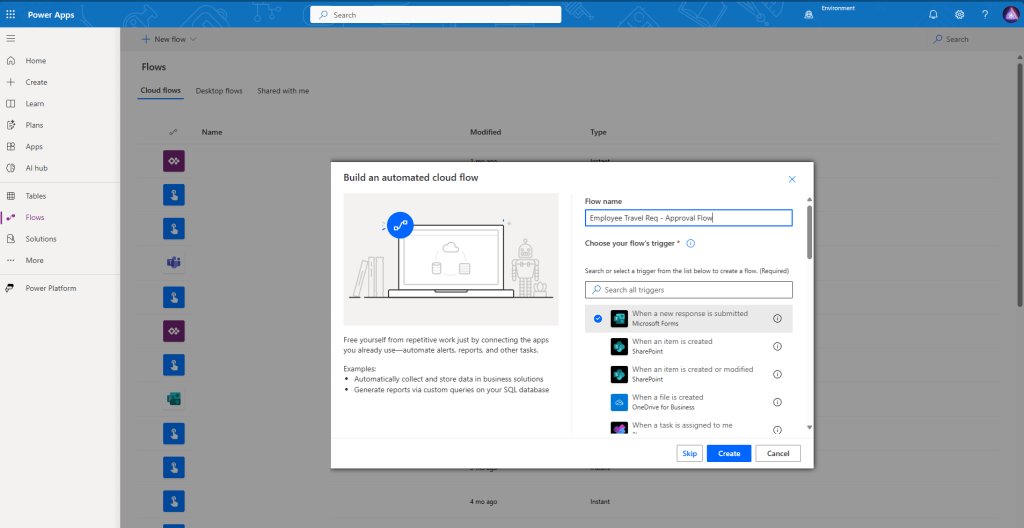
1. Trigger: MS Form Submission
- Create an MS Form for employees to submit travel requests.
- Use the form submission as the trigger in Power Automate.
2. Setting Up Approval in Power Automate
In Power Automate, after your trigger, add an action by searching for “Approval”.
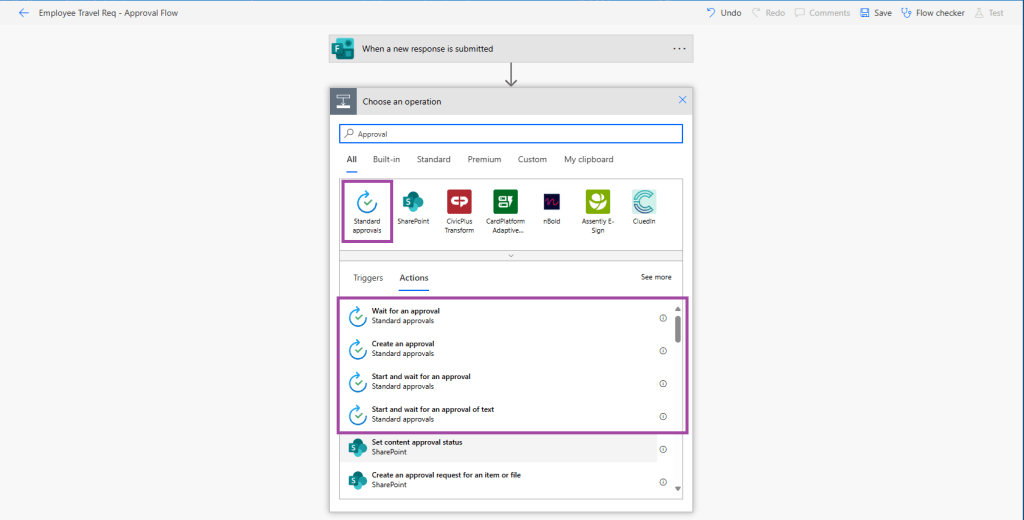
Types of Approval Actions in Power Automate:
- Create an approval
Initializes the approval process and allows branching for further customized actions. - Start and wait for an approval
Begins the approval and pauses the flow until a response is received. Use when you want to wait for a decision before proceeding. - Start and wait for an approval of text
Used to get confirmation or feedback in free text form as a response. - Wait for an approval
Use when you have already created an approval and simply want to wait for a response before proceeding.
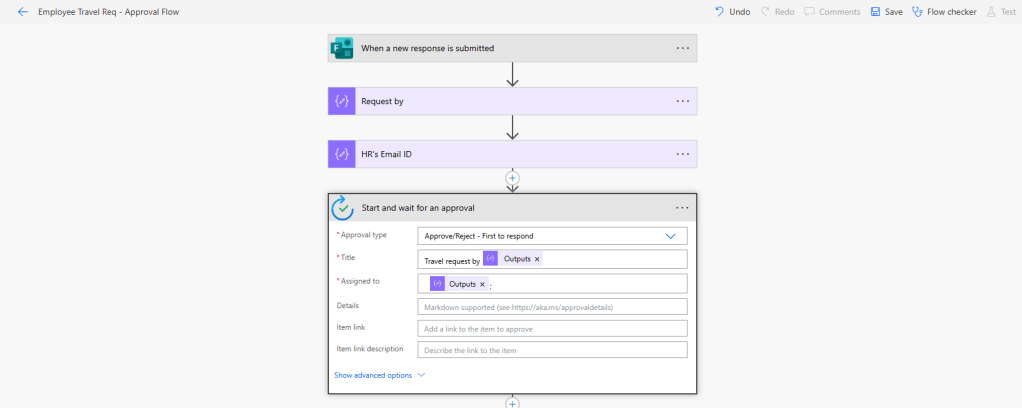
3. Let’s use “Start and Wait for an Approval”
For this scenario, select “Start and wait for an approval” because it pauses the workflow until the approver responds, ensuring actions only proceed after a decision.
4. Choosing the Approval Type
You’ll be prompted to choose an Approval type, each suited for different scenarios:
| Approval Type | Description |
|---|---|
| Approve/Reject – Everyone must approve | All assigned approvers must approve for it to pass. |
| Approve/Reject – First to respond | The first decision ends the process; use for swift actions. |
| Custom Responses – Wait for all | Use when you expect multiple custom feedbacks from all approvers. |
| Custom Responses – Wait for one | Collects custom feedback; process continues on the first response. |
| Sequential Approval | Routes approval through a specific order (e.g., line manager, then HR). |
Tip: For travel requests, “First to respond” is often used for speed, but select based on your organization’s policy.
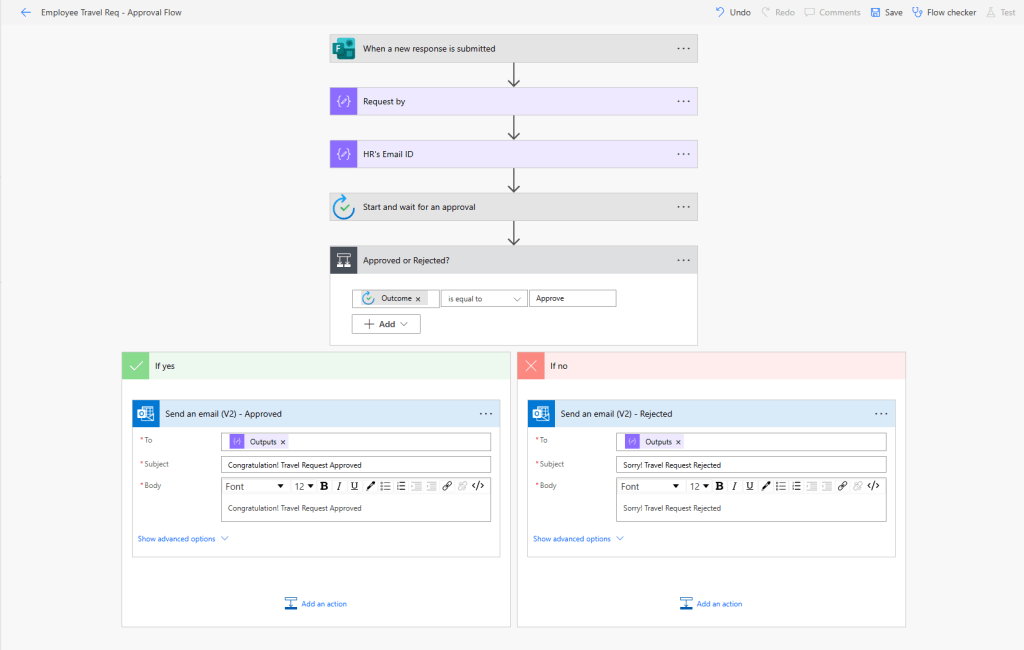
5. Condition: Approved or Rejected?
- After the approval action, add a Condition.
- Use the outcome property to check if the request was Approved or Rejected.
If the request is approved, send an automated email to the requester confirming approval and outlining next steps.
If rejected, send a different automated email to the requester with the rejection notice and reason (if provided).
8. (Optional) Log Results in SharePoint
For tracking and auditability, log the final outcome in a SharePoint list—store data like requestor, status, approver, and date.
9. Handling Timeouts
A crucial consideration for any approval flow is handling scenarios where an approver doesn’t respond within a reasonable timeframe. This is where Timeout Handling comes in.
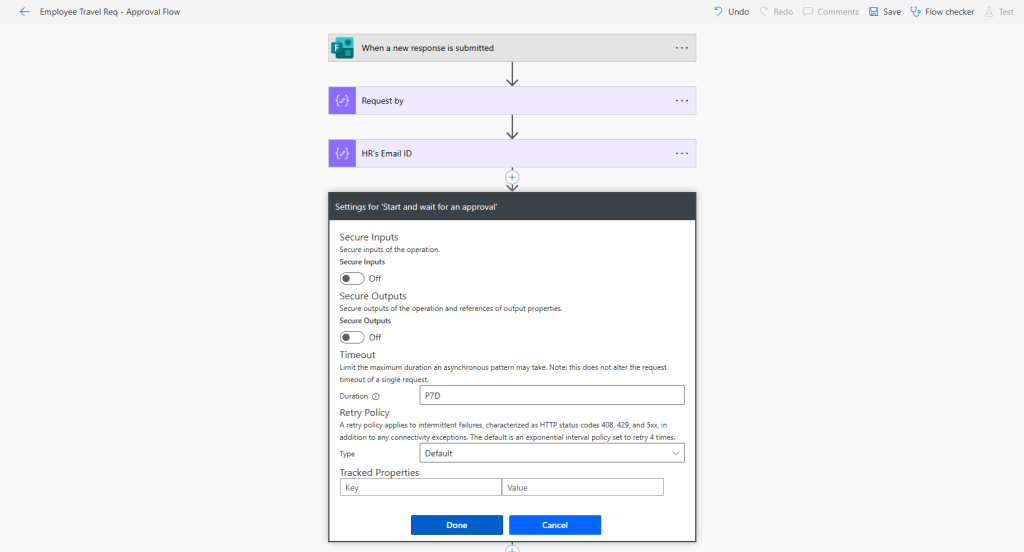
On the “Start and wait for an approval” action, click on the ellipsis (…) and select “Settings.” Here you’ll find the “Timeout” option. You can set a duration after which the approval action will time out if no response is received.
For example, you could set a timeout of “P7D” for 7 days. If the manager doesn’t respond within 7 days, the flow will continue down the timeout path. You can then add a “Parallel branch” or a “Do until” loop with a condition to check for the timeout.
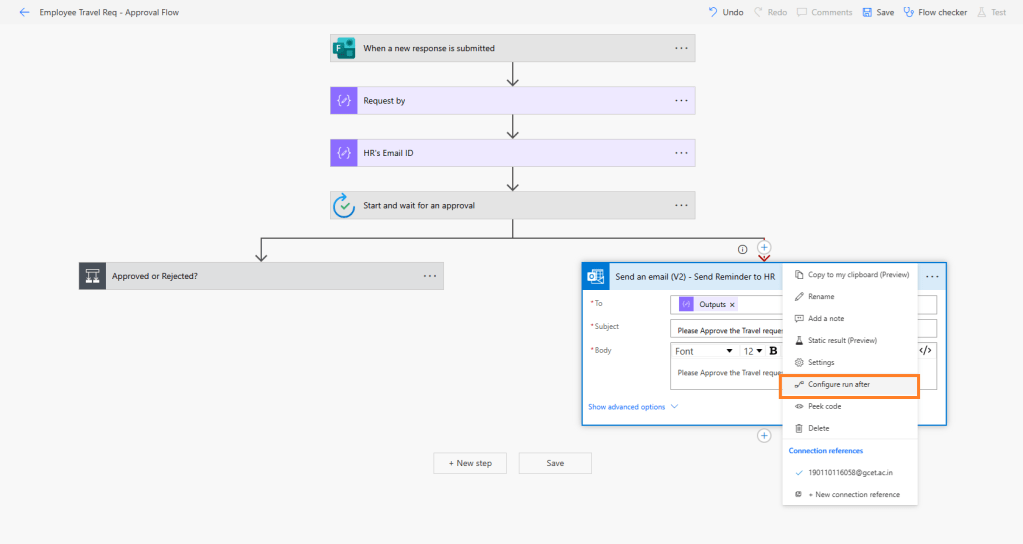
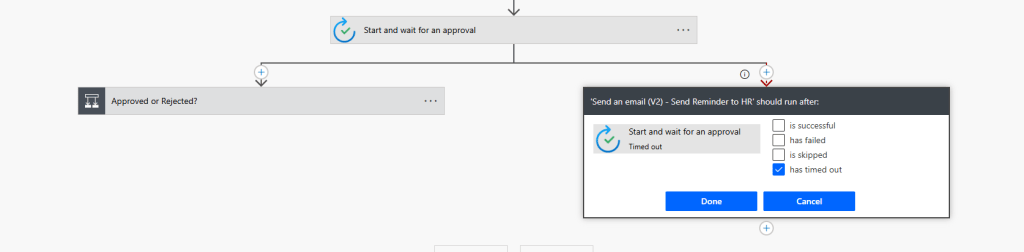
On timeout, you can automatically escalate to another manager, send reminders, or mark as expired. Use “Configure run after” to trigger actions when timeout.
Wrap-Up
Approval Flows in Power Automate are easy to implement and highly effective. Whether it’s a travel request or a complex multi-level approval, Power Automate gives you the tools to automate and streamline the process.
You now have a robust, step-by-step template to digitize your travel approval requests—and the same design can be repurposed for leave requests, expense claims, and more.
Get started building your own approval flows today!

Leave a comment