
Introduction
Validating phone numbers in Dynamics 365 is crucial for maintaining data accuracy and ensuring seamless communication with customers. However, phone number formats vary significantly across countries, making validation a challenge.
In this blog post, we’ll explore how to implement country-specific phone number validation in Dynamics 365 using a JavaScript web resource. We’ll leverage the powerful libphonenumber-js library to validate and format phone numbers dynamically based on the selected country.
Why Do We Need Country-Specific Phone Validation?
Phone numbers follow different formats and rules depending on the country. For example:
- United States:
+1 (555) 123-4567 - United Kingdom:
+44 20 7123 4567 - Germany:
+49 30 12345678
Without proper validation, users may enter incorrect or improperly formatted numbers, leading to:
- Failed communications (SMS, calls)
- Poor data quality in CRM
- User frustration due to manual corrections
By implementing automated country-based validation, we ensure:
-> Correct formatting for each country
-> Real-time validation with helpful error messages
-> Auto-formatting for consistent data storage
Implementation Steps
1. Create a JavaScript Web Resource
- Navigate to Power Apps -> Solutions -> Create New/Or use old one
- click + New -> More -> Web resource
- Set the following properties:
- Name:
new_phoneValidation.js - Display Name: Phone Number Validation
- File Type: JavaScript (JS)
- Name:
- Paste the provided JavaScript code (see below) or upload the js file
- Click Save

Code:
// Country to country code mapping
var countryCodes = {
    "United States": "US",
    "United States of America": "US", // Alternative name
    "UK": "GB", // Common abbreviation
    "United Kingdom": "GB",
    "Canada": "CA",
    "Australia": "AU",
    "Germany": "DE",
    "Federal Republic of Germany": "DE", // Alternative name
    "France": "FR",
    "Japan": "JP",
    "India": "IN",
    "Brazil": "BR"
    // Add more countries as needed
};

// Example phone number formats
var exampleFormats = {
    "US": "+1 (555) 123-4567",
    "GB": "+44 20 7123 4567",
    "CA": "+1 (416) 555-0123",
    "AU": "+61 2 9876 5432",
    "DE": "+49 30 12345678",
    "FR": "+33 1 23 45 67 89",
    "JP": "+81 90-1234-5678",
    "IN": "+91 98765 43210",
    "BR": "+55 11 98765-4321"
};

// Main phone number change handler
function onPhoneNumChange(executionContext) {
    var formContext = executionContext.getFormContext();
    validatePhoneNumber(formContext);
}

// validation function
function validatePhoneNumber(formContext) {
    var phoneField = formContext.getAttribute("telephone1");
    var countryField = formContext.getAttribute("address1_country"); // Note: Typo in 'country'?

    // Clear previous notifications
    var phoneControl = formContext.getControl("telephone1");
    phoneControl.clearNotification();

    // Get field values with null checks
    var phoneValue = phoneField && phoneField.getValue();
    var countryValue = countryField && countryField.getValue();

    // Skip validation if empty
    if (!phoneValue || !countryValue) return;

    // Normalize country name (trim and case-insensitive)
    var normalizedCountry = countryValue.toString().trim().toLowerCase();
    var countryCode = Object.keys(countryCodes).find(key =>
        key.toLowerCase() === normalizedCountry
    );

    if (!countryCode) {
        console.warn("Country not mapped: " + countryValue);
        return;
    }

    countryCode = countryCodes[countryCode]; // Get the country code

    // Load library if needed
    if (typeof libphonenumber === 'undefined') {
        loadPhoneNumberLibrary(function() {
            performValidation(phoneValue, countryCode, formContext, countryValue);
        });
    } else {
        performValidation(phoneValue, countryCode, formContext, countryValue);
    }
}

// Library loader with fallback
function loadPhoneNumberLibrary(callback) {
    if (typeof libphonenumber !== 'undefined') {
        callback();
        return;
    }

    var script = document.createElement('script');
    script.src = "https://unpkg.com/libphonenumber-js@1.12.8/bundle/libphonenumber-min.js";
    script.onload = callback;
    script.onerror = function() {
        console.error("Failed to load libphonenumber-js");
        // Fallback to basic validation if library fails to load
    };
    document.head.appendChild(script);
}

// main phone validation
function isValidPhoneNumberForCountry(phoneNumberString, countryCode) {
    try {
        const phoneNumber = libphonenumber.parsePhoneNumber(phoneNumberString,  {
          defaultCountry: countryCode,
          extract: false
        });
        return phoneNumber &&
               phoneNumber.isValid() &&
               phoneNumber.country === countryCode;
    } catch (error) {
        return false;
    }
}

// validation with formatting
function performValidation(phoneValue, countryCode, formContext, countryValue) {
    try {

        var isValid = isValidPhoneNumberForCountry(phoneValue, countryCode);

        if (!isValid) {
            var example = exampleFormats[countryCode] || "Example format not available";
            formContext.getControl("telephone1").setNotification(
                `Invalid ${countryValue} phone number. Valid example: ${example}`,
                "invalidPhone"
            );
        } else {
            // Auto-format valid numbers
            var phoneNumber = libphonenumber.parsePhoneNumber(phoneValue, countryCode);
            var formattedNumber = phoneNumber.formatInternational();
            formContext.getAttribute("telephone1").setValue(formattedNumber);
            formContext.getControl("telephone1").clearNotification();
        }
    } catch (e) {
        console.error("Validation error:", e);
        formContext.getControl("telephone1").setNotification(
            "Error validating phone number. Please check the format.",
            "validationError"
        );
    }
}
2. Add the Script to a Form
- Open the form where phone validation is needed (e.g., Contact or Account)
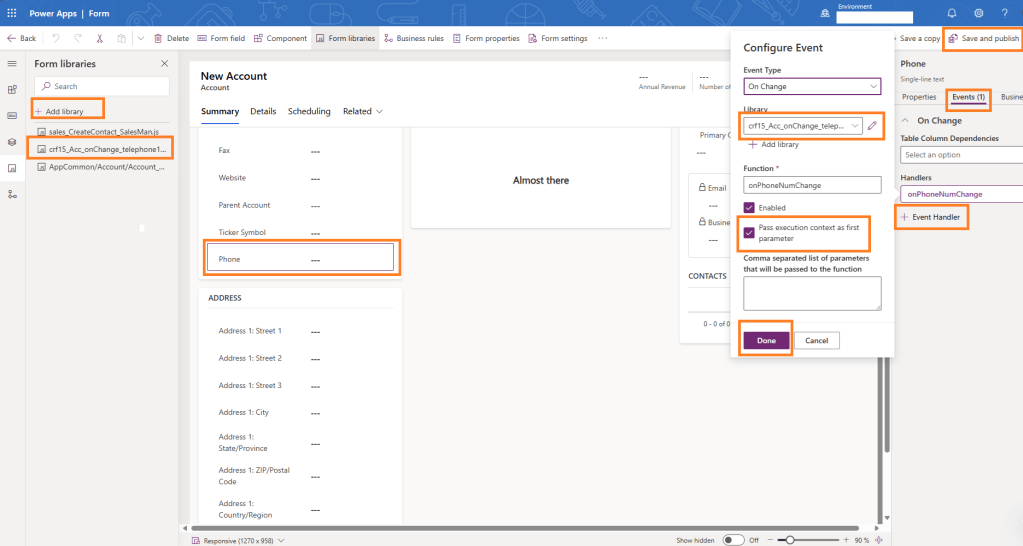
- Go to Form Libraries → + Add library (add the js – web resouce ) (see the image)
- Click on the Phone field. Click on Events. Add an OnChange event for the Phone field (
telephone1) - Select the new_phoneValidation.js library
- Set the function name to
onPhoneNumChange - Check “Pass execution context as first parameter” to yes
- Click Done and Save and publish
3. Understanding the Code
Key Features of the Script:
-> Dynamic Library Loading
// Library loader with fallback
function loadPhoneNumberLibrary(callback) {
    if (typeof libphonenumber !== 'undefined') {
        callback();
        return;
    }

    var script = document.createElement('script');
    script.src = "https://unpkg.com/libphonenumber-js@1.12.8/bundle/libphonenumber-min.js";
    script.onload = callback;
    script.onerror = function() {
        console.error("Failed to load libphonenumber-js");
        // Fallback to basic validation if library fails to load
    };
    document.head.appendChild(script);
}
-> Validation & Auto-Formatting
// main phone validation
function isValidPhoneNumberForCountry(phoneNumberString, countryCode) {
    try {
        const phoneNumber = libphonenumber.parsePhoneNumber(phoneNumberString,  {
          defaultCountry: countryCode,
          extract: false
        });
        return phoneNumber &&
               phoneNumber.isValid() &&
               phoneNumber.country === countryCode;
    } catch (error) {
        return false;
    }
}

// Auto-format valid numbers
            var phoneNumber = libphonenumber.parsePhoneNumber(phoneValue, countryCode);
            var formattedNumber = phoneNumber.formatInternational();
            formContext.getAttribute("telephone1").setValue(formattedNumber);
-> User-Friendly Error Messages
formContext.getControl("telephone1").setNotification(
                `Invalid ${countryValue} phone number. Valid example: ${example}`,
                "invalidPhone"
            );
Testing the Implementation
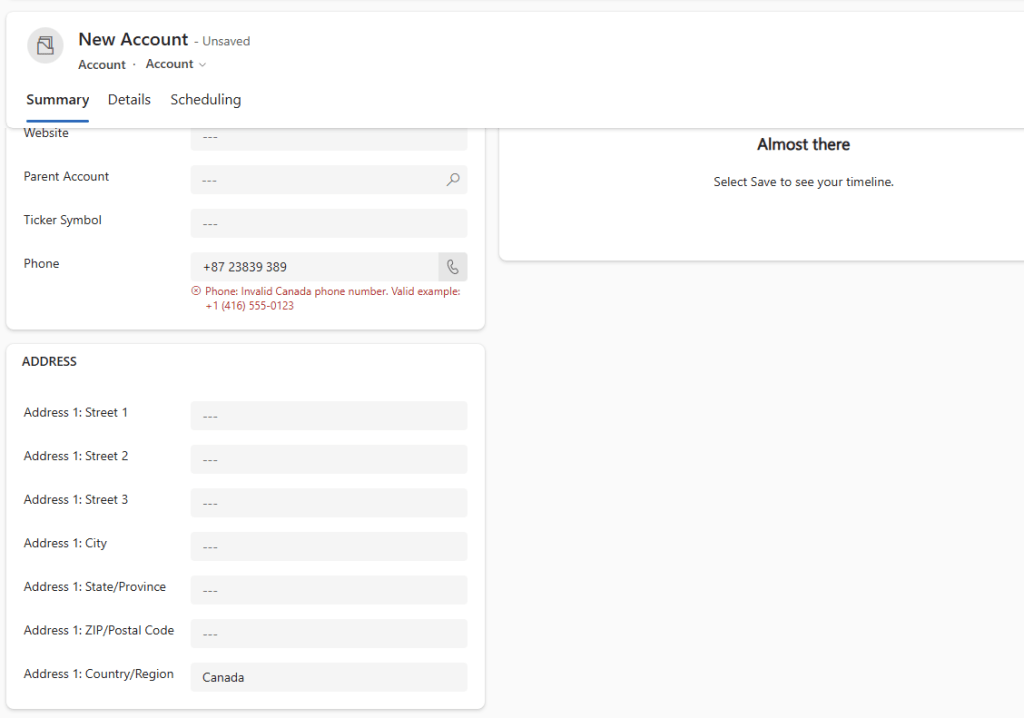
- Open a Contact or Account record.
- Select a Country (e.g., “United States”).
- Enter an invalid phone number (e.g.,
1234567890).- Expected: Error message with a valid example.
- Enter a valid number (e.g.,
(555) 123-4567).- Expected: Auto-formatted to
+1 (555) 123-4567.
- Expected: Auto-formatted to
Conclusion
By implementing country-specific phone validation, we enhance data quality and user experience in Dynamics 365. The solution:
✔ Dynamically validates based on the selected country
✔ Auto-formats numbers for consistency
✔ Provides helpful feedback for invalid entries
This approach can be extended to support more countries or integrated with other fields.
Would you like a deeper dive into any part of this implementation? Let me know in the comments! 🚀
Keep Learning!
- Share your thoughts or questions in the comments below.
- Stay tuned to our blog for more Dynamics 365 tips and tutorials.
Thanks for reading!

Leave a comment